Wireless networking is the transmission of data between devices without physical wires, using radio frequency signals governed by the IEEE 802.11 standards family. Every home router, office access point, and mobile hotspot operates on these principles. The two most common frequency bands are 2.4 GHz and 5 GHz, and the encryption standard WPA3 now sets the security baseline for modern networks. Whether you are setting up a home network or managing infrastructure for a multi-unit property, understanding wireless network basics gives you the foundation to make better decisions and fix problems faster.
What are the core components of a wireless network?
A wireless network has three essential hardware layers: the access point, the router, and the client device. Each plays a distinct role, and confusing them leads to poor design decisions.
Access points (APs) are the radio transmitters that broadcast the wireless signal. They connect to a wired network and serve as the bridge between your cabled infrastructure and wireless clients. A wireless router combines an AP, a router, and often a switch into one box. That works fine for a single home or small office. Larger environments split these functions across dedicated hardware for better control.
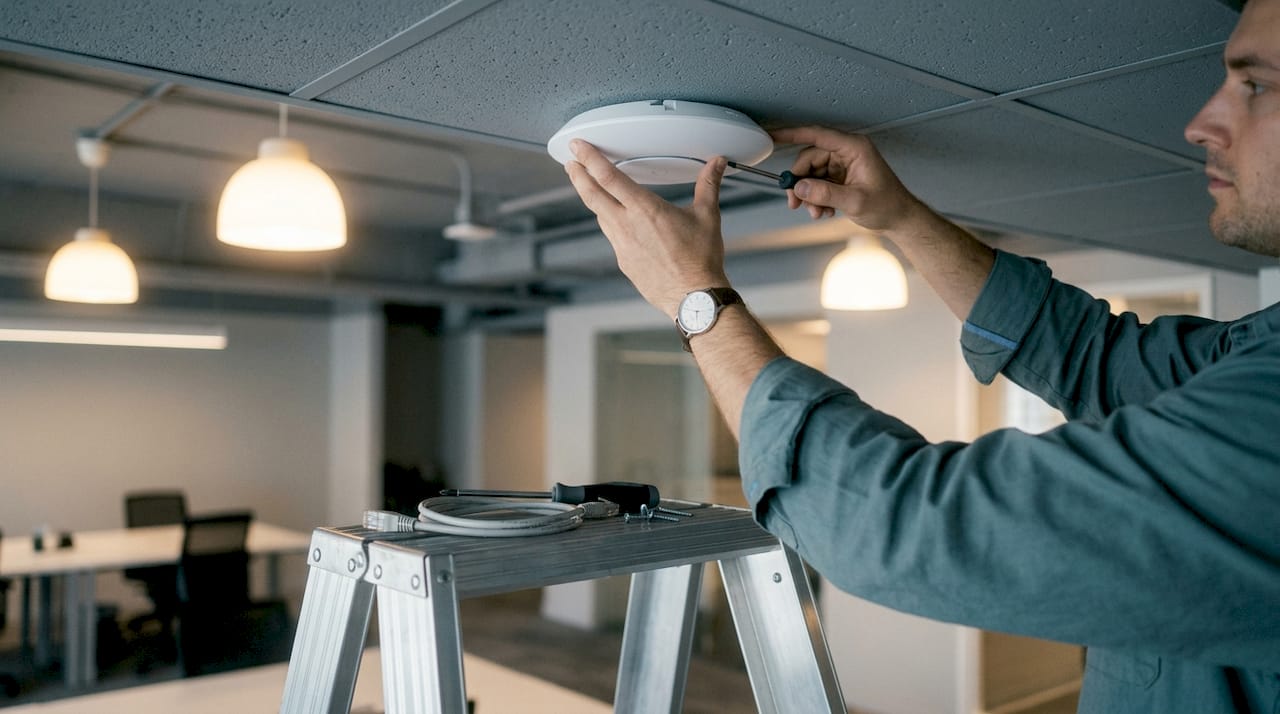
Client devices connect to the network through a wireless network interface card (NIC), which is built into every modern laptop, phone, and tablet. The NIC handles the radio communication on the client side.
Two identifiers define every wireless connection:
- SSID (Service Set Identifier): The network name you see when scanning for Wi-Fi. One AP can broadcast multiple SSIDs for different user groups.
- BSSID (Basic Service Set Identifier): The unique hardware address of a specific AP radio. Clients use the BSSID to distinguish between APs broadcasting the same SSID.
Pro Tip: When you roam between APs on the same SSID, your device reconnects to a new BSSID. If roaming feels slow or drops connections, the issue is usually BSSID handoff timing, not signal strength.
Enterprise setups with 50+ APs rely on Wireless LAN Controllers (WLCs) for centralized configuration, roaming, and security. WLCs use CAPWAP tunnels over UDP ports 5246 and 5247 to carry control and data traffic between the controller and each lightweight AP. That architecture lets a network administrator push a configuration change to hundreds of APs at once instead of logging into each one individually.
What types of wireless networks exist?
Wireless networks are categorized by range and underlying technology. Knowing the category tells you what hardware, protocols, and use cases apply.
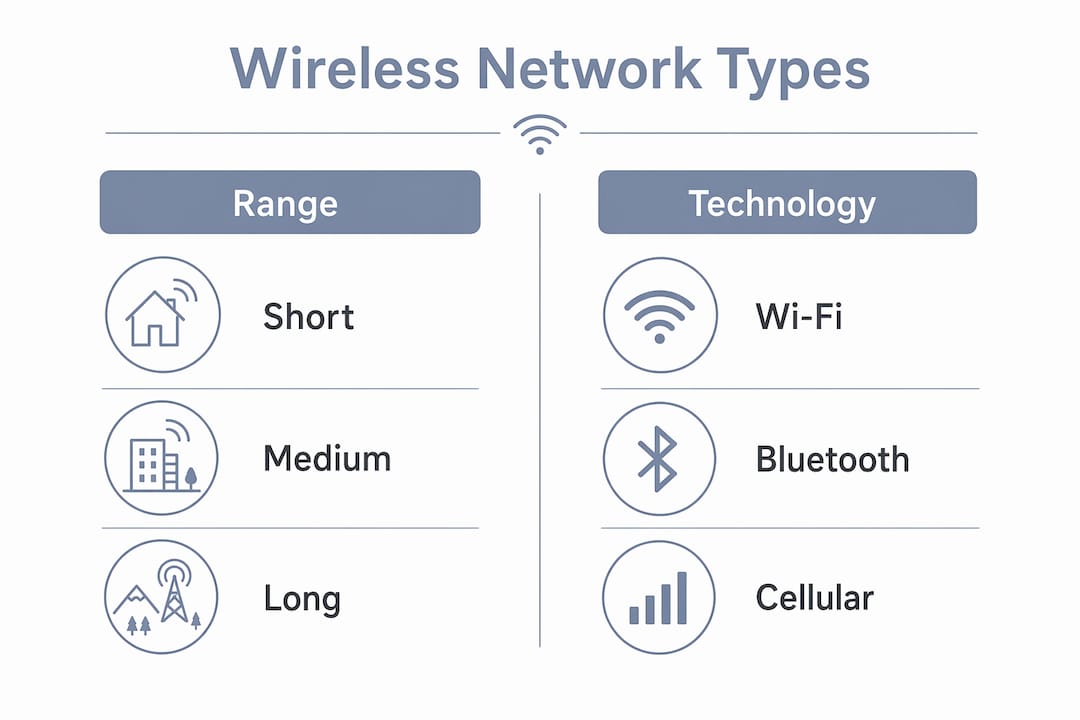
| Network Type | Range | Technology | Common Use |
|---|---|---|---|
| PAN (Personal Area Network) | 1–10 meters | Bluetooth, Zigbee | Headphones, wearables, smart home sensors |
| LAN (Local Area Network) | Room to building | Wi-Fi (IEEE 802.11) | Home, office, campus networks |
| MAN (Metropolitan Area Network) | City-wide | WiMAX, licensed wireless | Municipal broadband, ISP backhaul |
| WAN / WWAN (Wide Area Network) | Regional to national | Cellular (4G LTE, 5G) | Mobile data, remote site connectivity |
Wireless networks span four categories from PAN at 1–10 meters up to WAN using carrier cellular infrastructure for wide geographic coverage. That range matters when you choose technology. Bluetooth makes sense for a wireless keyboard. It makes no sense for connecting a remote security camera 300 feet from your building.
Wi-Fi, the most common LAN technology, operates under the IEEE 802.11 standard. The latest generation, Wi-Fi 6 (802.11ax), adds OFDMA (Orthogonal Frequency Division Multiple Access) to serve multiple clients simultaneously on the same channel. For property managers running dense environments with many connected devices, Wi-Fi 6 is the practical choice for new installations.
The advantages of wireless networks for IT decision-makers go beyond convenience. Wireless infrastructure reduces cabling costs in retrofit buildings and enables flexible device placement that wired-only networks cannot match.
How does wireless networking work technically?
Radio frequency bands, channels, and signal quality determine how well your wireless network performs. Getting these right is the difference between a fast, stable connection and one that drops constantly.
The 2.4 GHz vs. 5 GHz choice
The 2.4 GHz band travels farther and penetrates walls better, but it is crowded. Only channels 1, 6, and 11 are non-overlapping in the 2.4 GHz U.S. band. Choosing any other channel causes interference that degrades throughput across multiple channels at once. That is a critical point most home users miss.
The 5 GHz band offers over 20 non-overlapping channels, which dramatically reduces congestion. The tradeoff is shorter range and weaker wall penetration. For a dense apartment building or open-plan office, 5 GHz is almost always the better choice for performance.
How data actually moves
Wi-Fi is bidirectional communication where APs and client devices exchange packets over radio waves in milliseconds. Modern Wi-Fi 6 uses OFDMA to subdivide a channel into smaller resource units, letting the AP talk to multiple devices at the same time rather than one at a time. That efficiency gain is most noticeable in environments with 20 or more connected devices.
Signal strength vs. signal quality
Signal strength is measured in dBm, and most people assume a strong signal means a good connection. That assumption is wrong. A strong signal in a noisy environment reduces performance just as much as a weak signal in a quiet one. The metric that actually matters is the signal-to-noise ratio (SNR). High SNR means the signal is clearly distinguishable from background interference. Low SNR means the radio has to work harder to decode packets, which slows throughput and increases retransmissions.
Pro Tip: Use a Wi-Fi analyzer app to check both signal strength (dBm) and noise floor before deciding an AP placement is acceptable. A reading of -65 dBm with a noise floor of -90 dBm gives you a healthy 25 dB SNR. A reading of -55 dBm with a noise floor of -60 dBm is actually worse.
Channel selection in practice
Manual channel selection remains valuable for troubleshooting, especially where DFS (Dynamic Frequency Selection) channels are restricted or radar interference occurs. Automatic channel selection works well in simple environments. In dense multi-tenant buildings or environments near airports, manual planning gives you control that automation cannot provide.
What are best practices for setting up and troubleshooting a wireless network?
Reliable wireless networks do not happen by accident. They result from deliberate design choices and a structured approach to testing and maintenance.
Setup decisions that matter most
Three design decisions critically influence wireless network reliability: correct frequency band selection, clean SSID management for roaming, and enforcing WPA3 encryption. Make these choices before you install a single AP, not after problems appear.
- Choose your frequency band by environment. Use 5 GHz for high-density areas and devices within 30 feet of an AP. Reserve 2.4 GHz for IoT devices and areas where range matters more than speed.
- Manage your SSIDs deliberately. Broadcasting too many SSIDs on one AP wastes airtime. Keep it to two or three per AP: one for primary users, one for guests, and one for IoT devices if needed.
- Enforce WPA3 encryption. WPA2 is still common but has known vulnerabilities. WPA3 uses Simultaneous Authentication of Equals (SAE) to prevent offline dictionary attacks. Any new network installation should default to WPA3.
- Place APs for coverage overlap, not maximum range. Clients need a strong enough signal to roam cleanly between APs. A 15–20% overlap zone between AP coverage areas prevents dead spots without causing excessive co-channel interference.
- Document your network. Record AP locations, channel assignments, SSIDs, and IP address ranges. When something breaks at 11 PM, documentation is the fastest troubleshooting tool you have.
Troubleshooting with a structured method
Industry experts recommend testing with “normal,” “boundary,” and “broken” cases to understand and troubleshoot wireless networks effectively. A normal case is a client connecting from 10 feet away with clear line of sight. A boundary case is a client at the edge of coverage. A broken case is a client that cannot connect at all. Testing all three tells you where the network actually fails, not just where it works.
Common issues and their likely causes:
- Slow speeds near the AP: Check for co-channel interference from neighboring networks on the same channel.
- Frequent disconnections: Look at SNR, not just signal strength. Check for BSSID roaming failures between APs.
- Authentication failures: Verify WPA3 compatibility on the client device. Some older devices do not support WPA3 and need a transition mode enabled.
- Dead zones: Add an AP rather than increasing transmit power. Higher power does not help a client device transmit back to the AP.
For network troubleshooting strategies that go deeper into both wired and wireless environments, Lowvoltagecorp has published a dedicated guide for IT professionals covering 2026 best practices.
Pro Tip: When a user reports “the Wi-Fi is slow,” always ask which device and which location before touching any settings. The same complaint can come from a 2.4 GHz channel conflict, a failing NIC, or a misconfigured DNS server. Symptoms are not diagnoses.
Key Takeaways
A wireless network’s reliability depends on frequency band selection, channel planning, WPA3 security enforcement, and structured troubleshooting using normal, boundary, and broken test cases.
| Point | Details |
|---|---|
| Channel planning is critical | Use only channels 1, 6, or 11 on 2.4 GHz to avoid overlapping interference. |
| SNR beats signal strength | A strong signal in a noisy environment still delivers poor performance; always check signal-to-noise ratio. |
| WPA3 is the security baseline | Enforce WPA3 encryption on all new installations to prevent offline dictionary attacks. |
| Enterprise networks need WLCs | Deployments with 50+ APs require Wireless LAN Controllers for centralized roaming and security management. |
| Test all three case types | Normal, boundary, and broken case testing reveals where a network actually fails, not just where it works. |
What I have learned from years of wireless installs
Most people treat wireless networking as a plug-and-play technology. You unbox a router, connect it, and expect it to work everywhere. That expectation causes more problems than any hardware failure I have seen.
The biggest mistake I encounter consistently is channel overlap on 2.4 GHz. A property manager installs three APs, leaves them all on automatic channel selection, and they all land on channel 6. Every AP is now fighting every other AP for airtime. The fix takes two minutes once you understand the problem. Getting to that understanding takes experience.
The second most common mistake is treating signal strength as the only metric. I have walked into buildings where the Wi-Fi “looks great” on a phone’s signal bars but the connection is nearly unusable. The noise floor was high from neighboring networks and old microwave equipment. SNR told the real story in about 30 seconds.
My honest advice: set up a test network at home and deliberately break it. Change channels, add interference, move devices to the edge of coverage. You will learn more in two hours of hands-on testing than in ten hours of reading. Wireless networking rewards people who experiment, not people who memorize specifications.
— Aaron
Wireless network support from Lowvoltagecorp
Getting the theory right is one thing. Installing and maintaining a reliable wireless network in a real building is another.

Lowvoltagecorp specializes in wired and wireless network installation, repair, and maintenance for property managers and IT professionals across South Florida. From access point placement to cable infrastructure, the team handles the full scope of network buildouts. If your property has dead zones, authentication issues, or a network that has never been properly documented, that is exactly the kind of problem Lowvoltagecorp solves. For properties where network reliability connects directly to security camera systems and access control, check out cost-saving security upgrades designed for South Florida property owners. You can also review network wiring options tailored specifically for property managers.
FAQ
What is the difference between a wireless router and an access point?
A wireless router combines routing, switching, and wireless radio functions in one device. A standalone access point only handles the wireless radio function and connects to an existing router or switch.
Which Wi-Fi frequency band should I use?
Use 5 GHz for speed and high-density environments, and 2.4 GHz for longer range or IoT devices. The 5 GHz band offers over 20 non-overlapping channels compared to only 3 on 2.4 GHz.
What is WPA3 and why does it matter?
WPA3 is the current Wi-Fi security standard that uses Simultaneous Authentication of Equals (SAE) to block offline dictionary attacks. It replaces WPA2 and is the recommended encryption protocol for all new wireless network installations.
How do I fix slow Wi-Fi near my router?
Check for co-channel interference from neighboring networks using a Wi-Fi analyzer app. If multiple networks share the same channel, switch to a non-overlapping channel: 1, 6, or 11 on 2.4 GHz.
What is signal-to-noise ratio and why does it matter?
Signal-to-noise ratio (SNR) measures how clearly a Wi-Fi signal stands out from background interference. A high SNR means fast, reliable throughput; a low SNR causes slow speeds and dropped packets even when signal strength appears strong.