Network interference is defined as any unwanted signal or disturbance that degrades the integrity, throughput, or reliability of a network connection. For network administrators and IT professionals, understanding the types of network interference is the difference between a five-minute fix and a three-day outage hunt. Environmental interference and overloaded hardware can drive 40–50% spikes in network incident volume during high-traffic periods. Standards like IEEE 802.11, FCC Part 15, and RFC 9940 each define frameworks for classifying and managing these failures at the physical and network layers.
What are the main types of network interference?
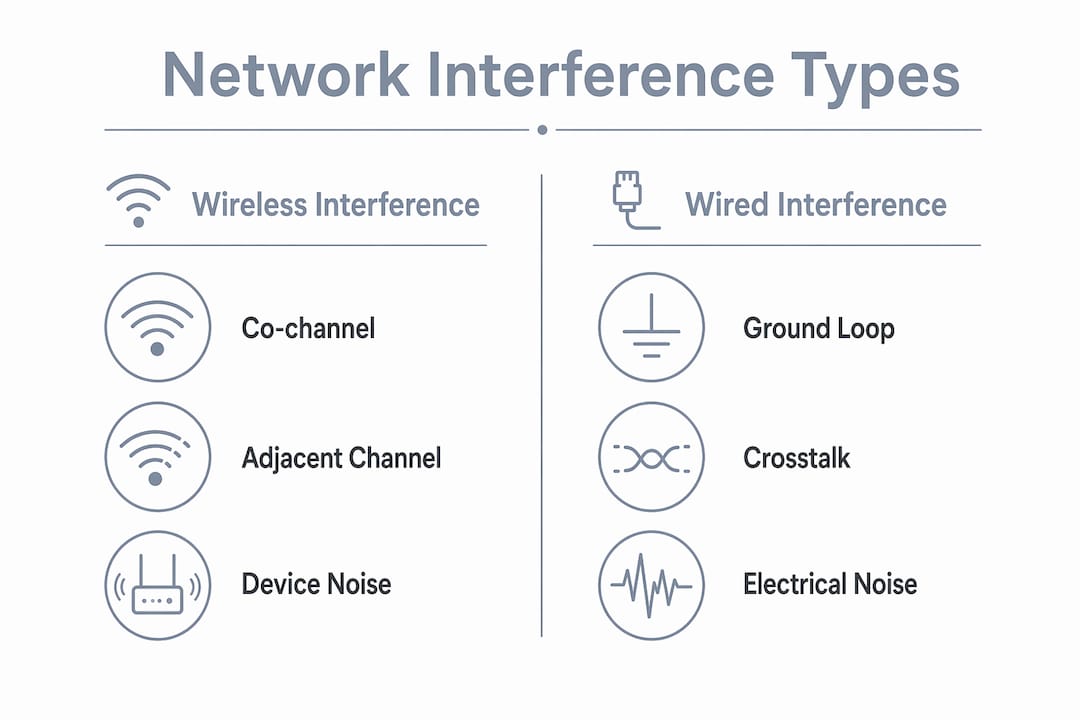
Network interference splits into two broad categories: wireless RF interference and wired network interference. Each category contains distinct subtypes that require different diagnostic approaches.
Wireless interference types:
- Co-channel interference: Two or more access points transmit on the same channel simultaneously. The signals collide, forcing retransmissions and cutting effective throughput.
- Adjacent channel interference: Nearby channels overlap in frequency. In the 2.4 GHz band, only channels 1, 6, and 11 are non-overlapping. Any other channel selection creates bleed-over.
- Electromagnetic interference (EMI): EMI spans frequencies from audio ranges up to radio frequencies and includes three subtypes. Continuous wave interference is a steady, narrowband signal. Transient interference includes electromagnetic pulses from electrical switching events. Broadband noise covers a wide frequency range and can originate from solar activity or industrial spark gaps.
- Multipath fading: Physical obstructions cause signals to bounce off walls, floors, and metal surfaces. Those reflected copies arrive at the receiver at slightly different times, producing self-interference often mistaken for a weak signal.
Wired network interference types:
- Ground loops: Inconsistent grounding between connected devices creates a voltage difference. That difference injects noise directly into the data path, producing data jitter and intermittent errors that look like random packet loss in software logs.
- Power line noise: AC power running parallel to data cables couples electromagnetic noise into the cable. This is common in buildings where electrical and data conduits share the same chase.
- Radiated vs. conducted EMI: Radiated EMI travels through the air and couples into cables or circuit boards. Conducted EMI travels along power or ground lines directly into connected equipment.
| Interference type | Primary medium | Typical cause |
|---|---|---|
| Co-channel | Wireless | Overlapping access point coverage |
| Adjacent channel | Wireless | Poor channel planning in 2.4 GHz |
| EMI (broadband) | Both | Industrial equipment, solar activity |
| Multipath fading | Wireless | Physical obstructions, reflective surfaces |
| Ground loop | Wired | Inconsistent grounding across devices |
| Power line noise | Wired | Parallel AC and data cable routing |
How do specific devices cause wireless network interference?
The 2.4 GHz ISM band is the most congested RF environment most IT professionals will ever manage. Microwave ovens are the most disruptive single source. They leak RF energy around 2.45 GHz, which sits directly inside the Wi-Fi operating range. A single microwave running in a break room can degrade Wi-Fi performance for every device on that floor.
Other common 2.4 GHz offenders include:
- Bluetooth devices: Bluetooth uses frequency hopping spread spectrum (FHSS) across 79 channels in the 2.4 GHz band. Adaptive frequency hopping (AFH) reduces conflict with Wi-Fi, but high device density still creates measurable noise.
- Cordless phones: Older DECT 6.0 phones operating in the 2.4 GHz range transmit continuously while in use, blocking entire Wi-Fi channels.
- Wireless video cameras: Analog wireless cameras using the 2.4 GHz band broadcast a constant, wide signal. They are among the worst offenders in warehouse and retail environments.
- Wireless HDMI transmitters: These devices operate in the 5 GHz band and can cause significant interference for 5 GHz Wi-Fi clients nearby.
The 5 GHz and 6 GHz bands carry fewer legacy interferers, but they are not interference-free. Radar systems and Wi-Fi 6E devices both operate in these ranges. FCC rules require Wi-Fi 6E devices to coordinate frequency use to avoid disrupting incumbent users, which means improper deployment creates interference rather than avoiding it.
Pro Tip: If you suspect a wireless camera is causing 2.4 GHz interference, power it off temporarily and run a spectrum scan before and after. The before-and-after comparison will show the exact frequency footprint the camera occupies.
What are common symptoms of network interference?
Intermittent connectivity is the most common symptom network administrators report. The connection drops briefly, then recovers, and software logs show nothing definitive. That pattern is a strong indicator of RF interference or a ground loop rather than a hardware failure.
Other symptoms to watch for:
- Elevated noise floor on spectrum scans, indicating background RF energy is consuming channel capacity
- Fluctuating signal strength (RSSI) without any change in device position
- Increased 802.11 retransmission rates visible in access point logs
- Deauthentication bursts, where clients repeatedly disconnect and reconnect
- Packet loss, jitter, and latency spikes that correlate with specific times of day or device activity
RFC 9940 distinguishes between faults, problems, and incidents in network management. Interference typically manifests as an incident at the service layer while the underlying problem lives at the physical layer. That distinction matters for root cause analysis.
| Symptom | Most likely interference type |
|---|---|
| Intermittent drops at specific times | Microwave oven or scheduled device activity |
| Constant low throughput | Co-channel or adjacent channel interference |
| Random packet loss on wired links | Ground loop or power line noise |
| RSSI fluctuation without movement | Multipath fading |
| Deauthentication bursts | Broadband EMI or radar pulse |
Pro Tip: Correlate symptom timestamps with device schedules. If packet loss spikes every day at noon, check what electrical or RF-emitting equipment activates at that time.
What tools and methods detect network interference?
Standard network monitoring software operates at Layer 2 and above. It sees retransmissions, packet loss, and latency. It does not see the RF environment that causes them. Software monitoring fails to detect non-Wi-Fi RF interference. A spectrum analyzer is the correct tool for physical-layer RF diagnosis.
A spectrum analyzer displays energy across a frequency range in real time. It reveals signals that a Wi-Fi controller never registers: microwave leakage, Bluetooth saturation, radar pulses, and industrial EMI. Without one, you are diagnosing RF problems with the wrong instrument.
For wired network interference, the diagnostic toolkit is different:
- Ground loop testing: Use a digital multimeter to measure voltage between ground points on connected equipment. Any measurable AC voltage between grounds confirms a ground loop.
- Cable qualification testers: These tools measure crosstalk, attenuation, and noise margin on copper runs. They identify power line coupling that a ping test will never catch.
- Time-domain reflectometers (TDR): TDRs locate cable faults and impedance mismatches that create signal reflections on wired links.
Multipath fading diagnosis requires antenna orientation testing rather than power adjustments. Move or rotate the antenna, then measure RSSI and retransmission rates again. If the numbers change significantly, multipath is the cause.
Pro Tip: Run spectrum scans at different times of day. Many interference sources are time-dependent. A clean scan at 8:00 AM tells you nothing about what happens at noon when the kitchen equipment runs.
How can administrators mitigate different types of interference?
Mitigation strategy depends entirely on interference type. Applying the wrong fix wastes time and can make the problem worse. Increasing transmit power in response to co-channel interference expands the interference footprint rather than reducing it. That is the most common and costly mistake administrators make.
Follow this priority sequence for wireless interference:
- Run a spectrum analysis first. Identify whether the source is Wi-Fi or non-Wi-Fi before touching any configuration.
- Apply proper channel planning. In the 2.4 GHz band, assign only channels 1, 6, or 11. In the 5 GHz band, use Dynamic Frequency Selection (DFS) channels where radar is not present.
- Reduce transmit power on access points. Smaller coverage cells reduce co-channel overlap between adjacent APs. This is the opposite of what most administrators instinctively do.
- Remove or replace interfering devices. Analog wireless cameras, legacy cordless phones, and wireless HDMI transmitters in the 2.4 GHz or 5 GHz range should be replaced with wired or band-compatible alternatives.
- Adjust antenna positioning and polarization. For multipath fading, physical antenna changes resolve the problem faster than any software adjustment.
- Segregate frequency bands. Push IoT and legacy devices to 2.4 GHz. Reserve 5 GHz and 6 GHz for latency-sensitive traffic.
For wired interference, the approach is infrastructure-focused. Proper network infrastructure maintenance includes verifying that all equipment shares a single ground reference point, separating data cables from AC power runs by at least 12 inches, and using shielded twisted pair (STP) cable in electrically noisy environments. Shielding and grounding are not optional in industrial or commercial settings. They are the baseline.
Key takeaways
Network interference is a physical-layer problem that software tools alone cannot diagnose or fix. Spectrum analyzers, proper grounding, and disciplined channel planning are the three pillars of effective interference management.
| Point | Details |
|---|---|
| Identify before acting | Run a spectrum analysis before changing any configuration to confirm the interference type. |
| Avoid power increases | Raising transmit power worsens co-channel interference by expanding the collision zone. |
| Ground loops need physical fixes | Software logs cannot isolate ground loop noise; use a multimeter to test ground potential differences. |
| Band segregation reduces congestion | Assign IoT and legacy devices to 2.4 GHz and reserve 5 GHz or 6 GHz for critical traffic. |
| Multipath needs antenna work | Reposition or repolarize antennas to resolve multipath fading rather than increasing signal power. |
What I’ve learned after years of chasing interference problems
The most expensive interference problems I’ve seen share one trait: the administrator assumed the issue was at the software layer and spent days in dashboards before anyone touched a cable or walked the floor with a spectrum analyzer. Non-Wi-Fi RF sources are invisible to every network controller on the market. A microwave oven, a wireless camera, or a poorly grounded UPS can bring a floor of users to their knees while the network management platform reports everything green.
Physical infrastructure health is not a one-time project. Grounding degrades. Cable runs get rerouted near electrical panels during renovations. New devices get added to the RF environment without any frequency coordination. The network that was clean six months ago may be saturated today. Regular spectrum audits and periodic grounding checks are not optional maintenance tasks. They are the reason some networks run reliably for years while others generate constant tickets.
The other mistake I see constantly is treating the 5 GHz and 6 GHz bands as interference-free zones. They are less congested, not immune. Wireless HDMI transmitters, radar systems, and improperly deployed Wi-Fi 6E gear all create real problems in those bands. The wireless network basics still apply regardless of band: plan channels, audit the RF environment, and fix the physical layer before touching software settings.
— Aaron
Network reliability starts with the right infrastructure
Interference problems rarely exist in isolation. A poorly grounded camera system creates wired noise. An analog wireless camera floods the 2.4 GHz band. A bad cable run near an electrical panel couples AC noise into every device on that segment. Lowvoltagecorp specializes in the physical infrastructure that determines whether your network performs or fails.

The Lowvoltagecorp security camera wiring guide covers installation practices that prevent interference from the start, including cable routing, shielding, and grounding standards. For wired network issues, the wired network troubleshooting guide walks through physical-layer diagnostics step by step. When the problem goes beyond a guide, Lowvoltagecorp provides on-site installation, repair, and maintenance for wired and wireless networks, security cameras, and cell boosters across South Florida.
FAQ
What is the most common type of wireless network interference?
Co-channel interference from overlapping access points is the most common wireless issue in dense deployments. In the 2.4 GHz band, microwave ovens are the most disruptive single non-Wi-Fi source.
How does network interference affect performance?
Interference raises the noise floor, forces retransmissions, and reduces effective throughput. Severe interference causes intermittent disconnects, packet loss, jitter, and latency spikes that affect all connected users.
Can software tools detect all types of signal interference?
Standard network monitoring software cannot detect non-Wi-Fi RF interference. A spectrum analyzer is required to identify physical-layer sources like microwave leakage, radar pulses, or industrial EMI.
What causes ground loop interference on wired networks?
Ground loops occur when connected devices reference different ground potentials. The voltage difference injects noise into the data path, producing random packet loss and jitter that software logs cannot isolate.
Does increasing Wi-Fi transmit power reduce interference?
Increasing transmit power worsens co-channel interference by expanding the signal footprint and increasing collisions with neighboring access points. Channel planning and reduced power levels are the correct fix.